Tamil Keyboard for Windows 10: Setup Guide
விண்டோஸ் 10 இல் தமிழ் தட்டச்சு
The Windows 10 menus, the layouts Windows 10 has, and the fixes that differ from Windows 11.
Short answer
Open Settings > Time & Language > Language, add Tamil, then select Tamil > Options > Add a keyboard. Choose Tamil Phonetic for English-letter typing, Tamil 99 or Tamil (InScript). Windows 10 has no Tamil Anjal. Press Windows + Space to switch.
Support notice: Windows 10 reached end of support on 14 October 2025. Microsoft says the PC still works, but it no longer gets free updates, technical help or security fixes, and Microsoft recommends Windows 11. The keyboard steps below are unchanged. On Windows 11, follow our Windows 11 Tamil keyboard guide instead.
What Is Different on Windows 10
The Tamil keyboards behave the same on both versions. The menus and one layout differ:
| Item | Windows 10 | Windows 11 |
|---|---|---|
| Language settings | Settings > Time & Language > Language | Settings > Time & language > Language & region |
| Open Tamil’s options | Select Tamil, then the Options button | The … menu next to Tamil, then Language options |
| Phonetic dictionary | Download under Basic typing | Download next to Basic typing, under Language features |
| Advanced keyboard settings | Settings > Devices > Typing | Settings > Time & language > Typing |
| Tamil Anjal layout | Not included | Included (00030449) |
Windows 10 includes Tamil Phonetic (type English letters, pick a Tamil suggestion), Tamil 99 (00020449) and Tamil, the InScript layout (00000449). Not sure which to pick? The layout comparison in the Windows 11 guide applies to Windows 10 as well; leave out Anjal.
Add Tamil on Windows 10
- Open Start > Settings > Time & Language > Language.
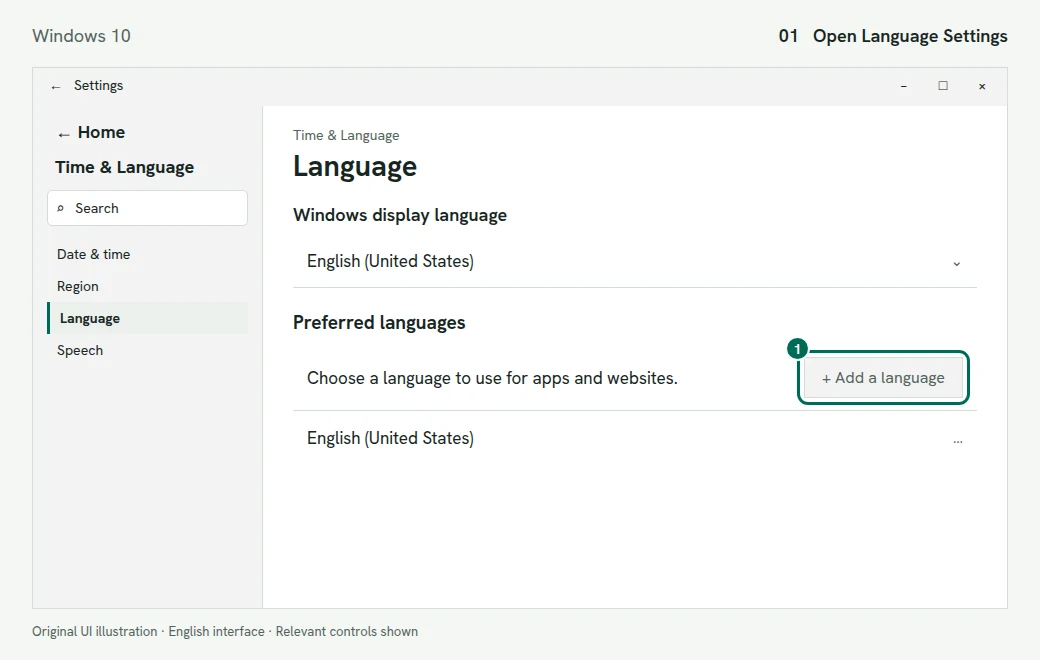
1. Find Add a language in Preferred languages. Illustration of the Windows 10 screen - Under Preferred languages, select Add a language. Search for Tamil, select it, then Next. Leave Set as my Windows display language unticked to keep Windows in English, then select Install.
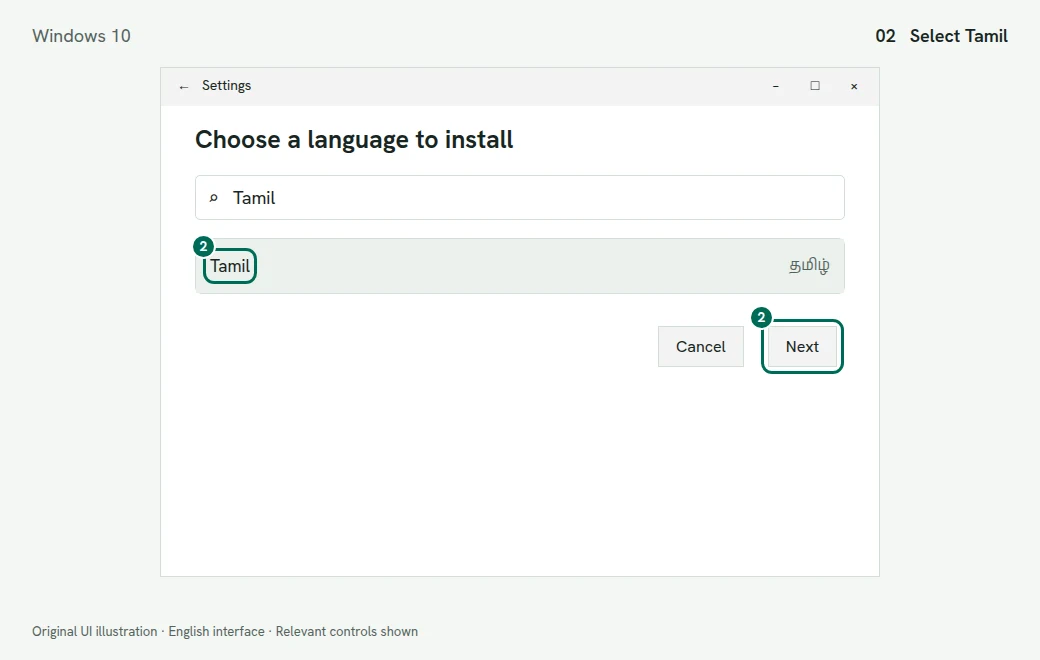
2. Search for Tamil and select Next. Illustration of the Windows 10 screen 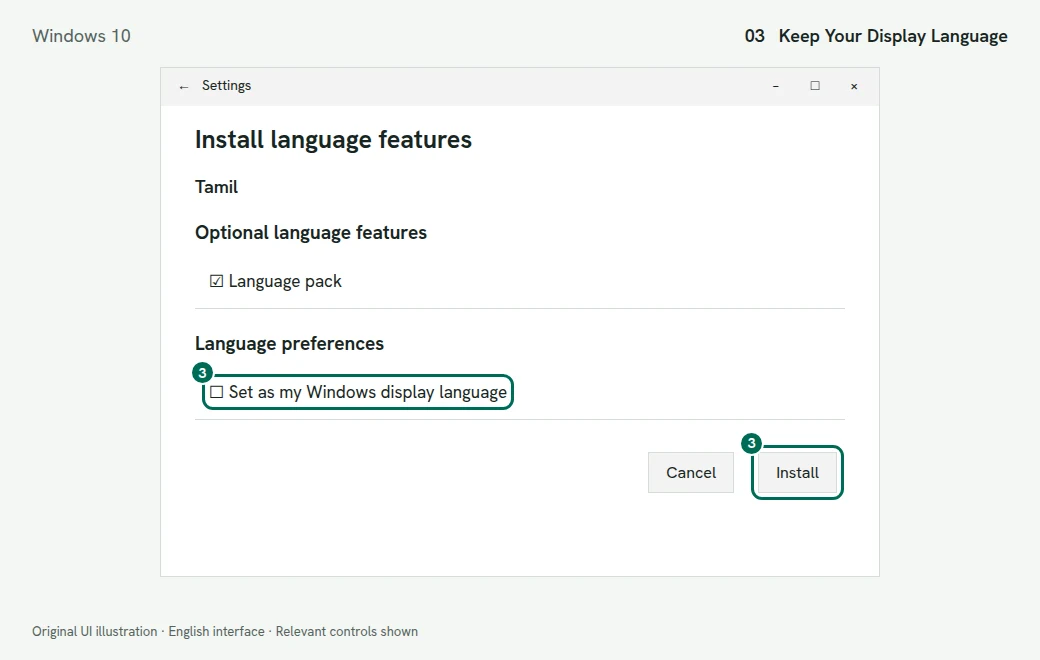
3. Review language preferences before selecting Install. Illustration of the Windows 10 screen - Back in Language, select Tamil, then Options. Under Keyboards, select Add a keyboard.
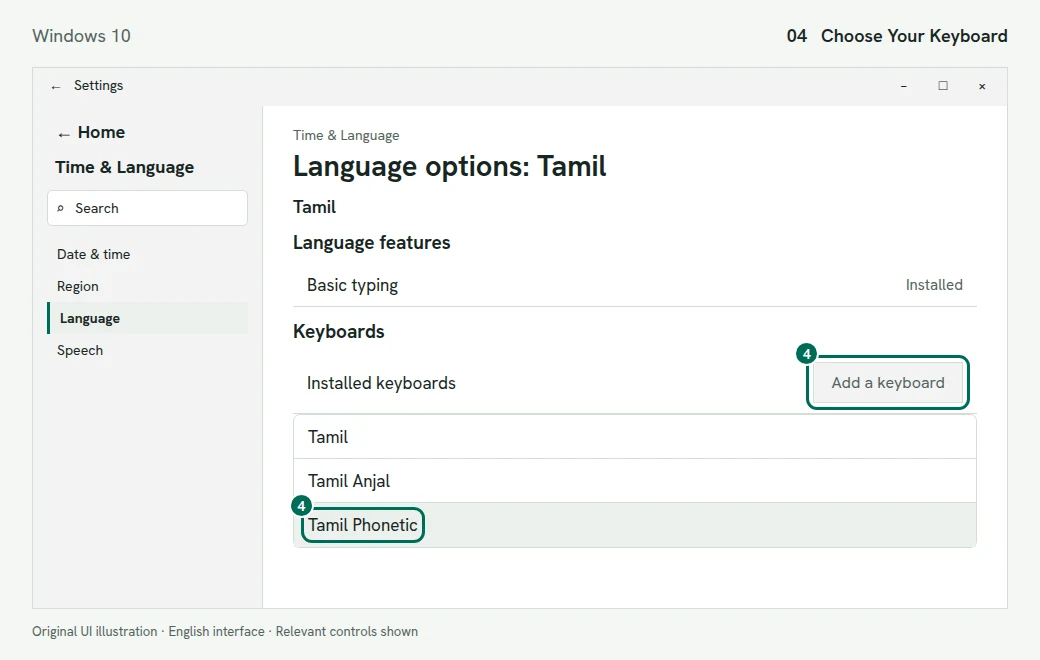
4. Add Tamil Phonetic from the keyboard list. Illustration of the Windows 10 screen - Choose Tamil Phonetic, Tamil 99 or Tamil. You can add more than one.
- Press Windows + Space and select the full keyboard name. Tamil Phonetic and Tamil 99 can share one Tamil indicator in the taskbar, so read the name before you type.
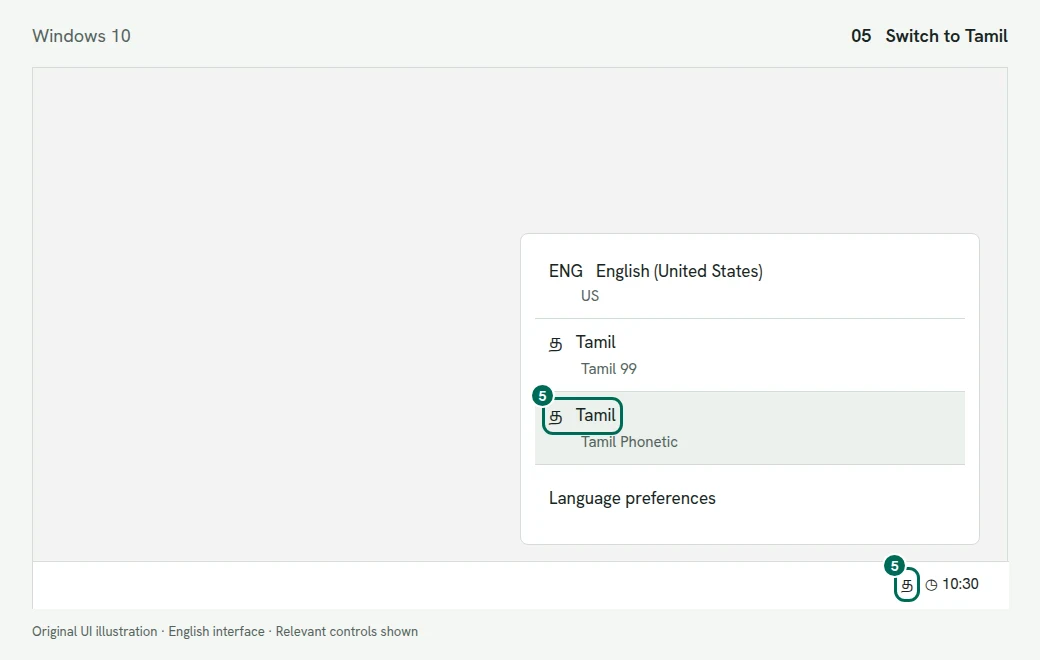
5. Select the full keyboard name with Windows + Space. Illustration of the Windows 10 screen
Check It Works
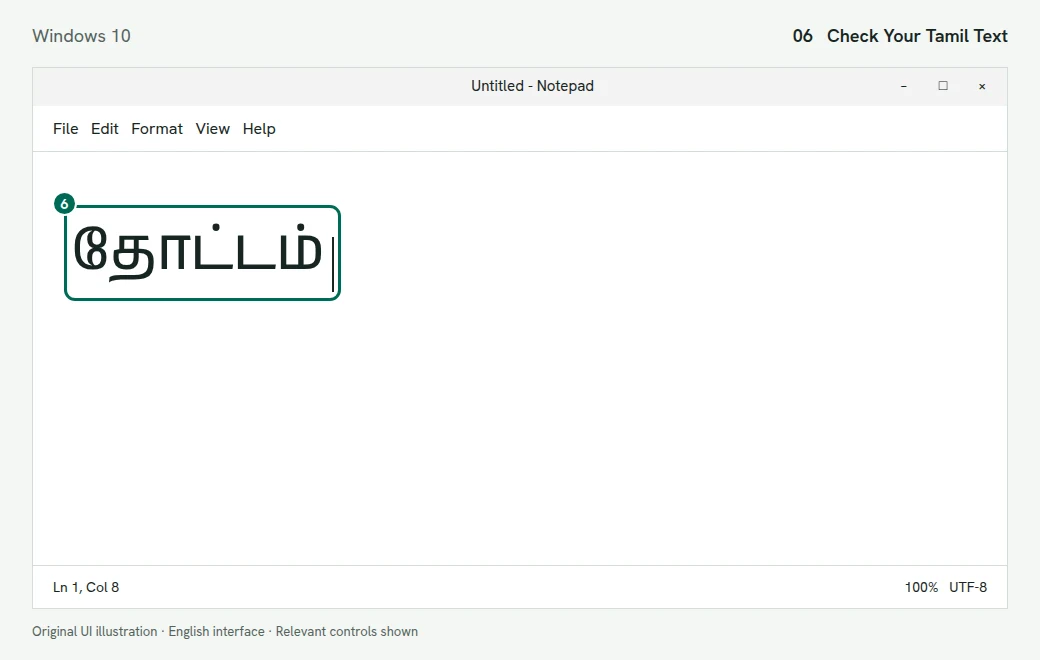
With Tamil Phonetic active, type thottam and press Enter on the suggestion தோட்டம் (garden). With Tamil 99, Microsoft’s worked example types the same word with l x o f o k f. Practice keys for each layout are in the Windows 11 guide, our Tamil99 keyboard and the InScript chart.
Windows 10 Fixes
“Tamil IME Is Not Ready Yet”
The Tamil Phonetic dictionary is still downloading through Windows Update. To start it yourself, open Settings > Time & Language > Language, select Tamil, then Options, and select Download under Basic typing. Microsoft says that if Basic typing has no Download button, the dictionary is already installed.
Tamil Anjal Is Not in the List
That is expected: Anjal arrived with Windows 11. Use Tamil Phonetic, or see our Tamil typing software guide for third-party layouts.
Ctrl + Shift or Alt + Shift Switches Unexpectedly
Open Settings > Devices > Typing and, under More keyboard settings, select Advanced keyboard settings. Open Language bar options > Advanced Key Settings, select Between input languages, then Change Key Sequence, and set unwanted shortcuts to Not Assigned.
Other Problems
Missing keyboards, boxes in Word and the old Tamil Indic Input 3 download work the same way on both versions. See Fix Tamil Keyboard Problems in the Windows 11 guide.