Tamil Keyboard on Windows 11: Setup Guide
தமிழ் தட்டச்சு
Set up Tamil input in Windows 11, choose the right layout, and keep your display language as it is.
Short answer
Add Tamil in Settings, then add the keyboard you want in Tamil’s language options. Press Windows + Space to switch. Use Tamil Phonetic for English-letter words or a fixed layout if you already know its keys.
Which Tamil Keyboard Should You Choose?
You can add more than one layout, but begin with the one you intend to learn. A Tamil font changes how letters look; a keyboard changes what your keys enter.
| Keyboard Name | Best Use | Identifier |
|---|---|---|
| Tamil Phonetic | English-letter words with Tamil suggestions. Start here if you know Tanglish. | IME, not a fixed keyboard identifier. |
| Tamil 99 | Use this if you learned Tamil99. Vowels and consonants have fixed keys. | 00020449 |
| Tamil | The InScript layout. Choose it only if you want the InScript key positions. | 00000449 |
| Tamil Anjal | Anjal letter-by-letter phonetic layout, distinct from word suggestions in Tamil Phonetic. | 00030449 |
Add Tamil on Windows 11
- Open Start > Settings > Time & language > Language & region.
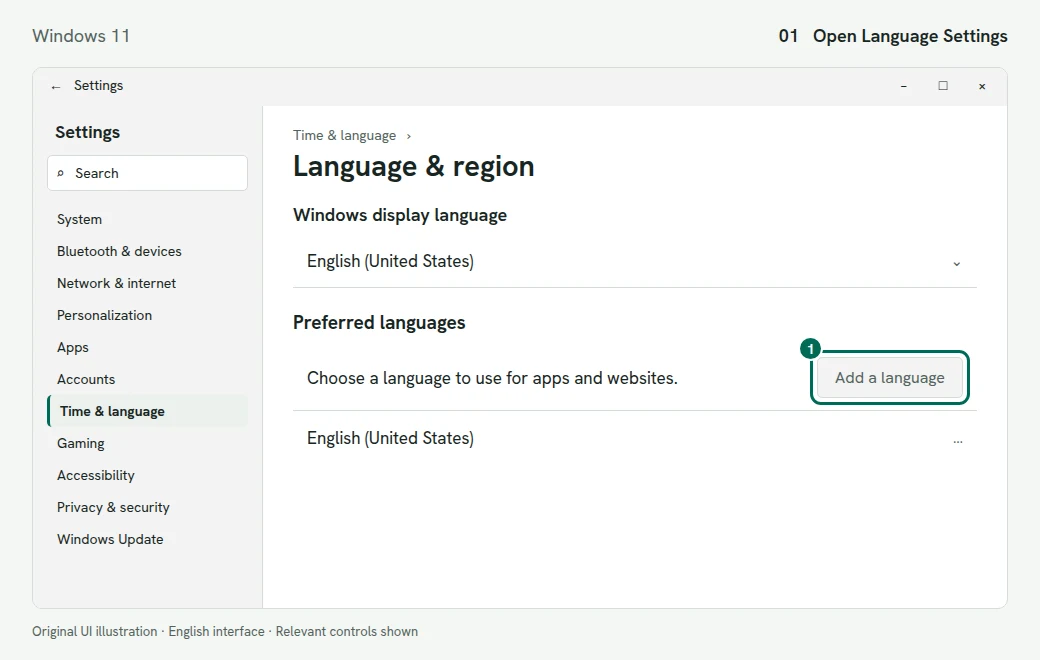
1. Find Add a language in Preferred languages. Illustration of the Windows 11 screen - Select Add a language, search for Tamil, select it and choose Next.
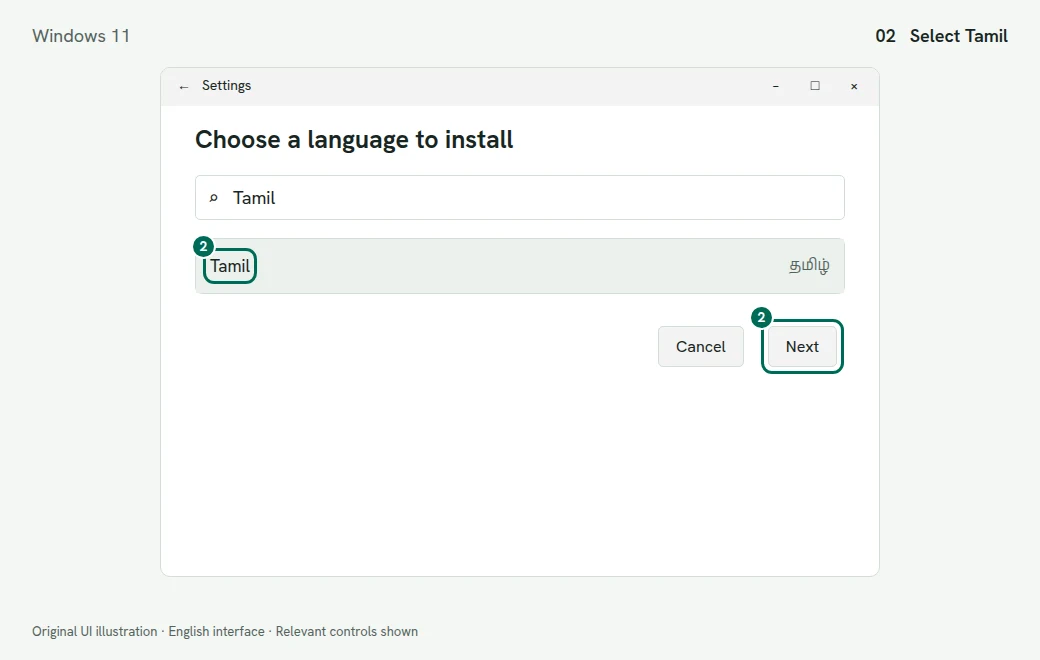
2. Search for Tamil and select Next. Illustration of the Windows 11 screen - Review the optional features. You can keep your current Windows display language. Select Install.
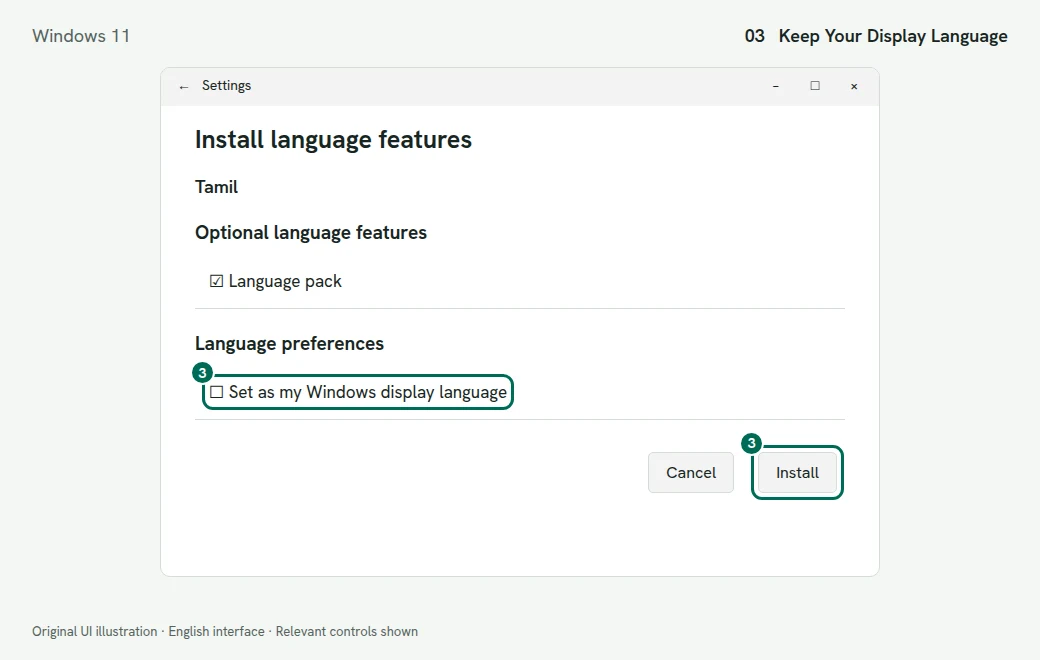
3. Review language preferences before selecting Install. Illustration of the Windows 11 screen - Beside Tamil, select … > Language options. Under Keyboards, select Add a keyboard and choose Tamil Phonetic, Tamil 99, Tamil or Tamil Anjal.
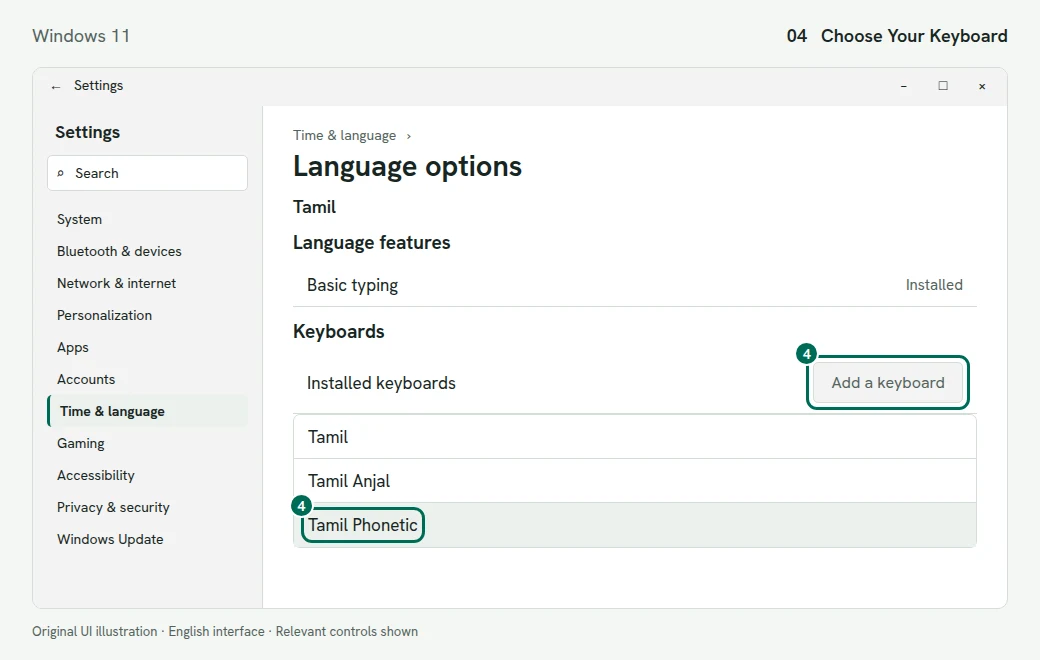
4. Add Tamil Phonetic from the keyboard list. Illustration of the Windows 11 screen
Switch Between English and Tamil
Press Windows + Space and select the full keyboard name. The taskbar language menu also lists your installed layouts. Tamil Phonetic and Tamil 99 can share the same Tamil indicator, so check the layout name before typing. Alt + Shift may also switch input languages when configured; it is not a reliable way to choose among several Tamil layouts.
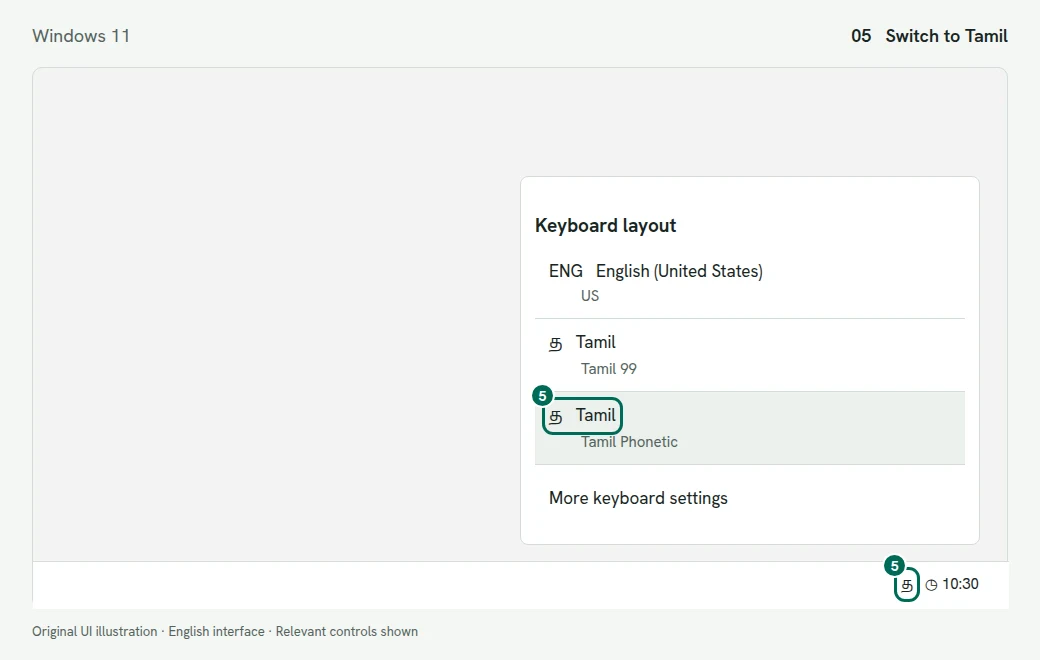
Try Your Chosen Layout
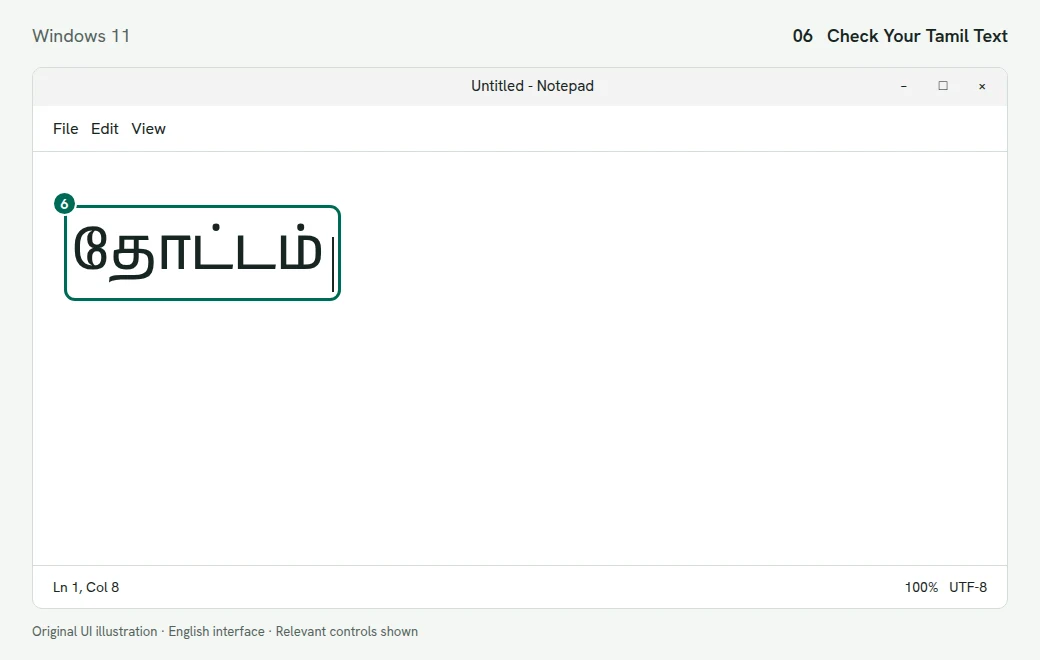
Tamil Phonetic: type thottam. Review the suggestions and press Enter to accept தோட்டம் (garden). Use the cursor keys for another candidate. Our online transliteration tool also accepts English letters, but its spelling rules are its own.
Tamil99: use the fixed key chart rather than English spelling. In Microsoft’s worked example, l x o f o k f types the same word. Practise with our Tamil99 keyboard, keeping the operating system on English while using the online tool.
InScript: choose the keyboard named Tamil, then use our InScript chart and practice keyboard. Tamil99 and InScript place letters differently; do not follow a Tamil99 chart while InScript is active.
Anjal: select Tamil Anjal explicitly. It is a phonetic key layout, not the Tamil Phonetic suggestion engine. Use Microsoft’s linked Anjal keyboard diagram to check key positions; do not assume that our transliteration spellings are Anjal sequences.
Fix Tamil Keyboard Problems
Tamil Phonetic Is Missing
Open the options for Tamil, not English, then inspect Add a keyboard. If Windows + Space does nothing, check that at least two keyboards are installed. On a managed computer, ask your administrator if language installation is blocked.
“Tamil IME Is Not Ready Yet”
The phonetic dictionary downloads through Windows Update. Give it time to finish. To request it manually, open Tamil’s language options and select Download for Basic typing. On Windows 11 this is under Language features; on Windows 10 the button is under Basic typing. Microsoft says that if Basic typing is absent, it is already installed.
Ctrl + Shift Changes the Layout Unexpectedly
Search Settings for Advanced keyboard settings. Open Language bar options > Advanced Key Settings, select Between input languages, then Change Key Sequence. Review both input-language and keyboard-layout shortcuts. Choose Not Assigned for unwanted shortcuts. Continue switching deliberately with Windows + Space.
Word Shows Boxes or the Wrong Letters
Select a Unicode Tamil font such as Nirmala UI, which Microsoft lists as supporting Tamil. Test a new line with the correct input layout selected. If an old document contains legacy-encoded text, changing the font is not the same as converting its encoding. Use our Tamil Unicode converter for supported legacy formats.
Do You Need Tamil Indic Input 3?
No external IME is needed for this setup. Microsoft’s current instructions use the built-in keyboards. The former Bhasha India download address redirects to Microsoft’s home page; we could not verify a current official Tamil Indic Input 3 installer there. Use the built-in route instead of relying on an old third-party download.